Want to import data from multiple Excel files to a single dBase table?
Try Withdata FileToDB, a desktop Excel to dBase converter for Windows, MacOS, and Linux, Convert Excel to dBase, Easy and Fast.
- Can run in GUI mode, Step by Step, just a few mouse clicks.
- Can run in Command line, for Scheduled Tasks and Streams.
- Import Excel to dBase locally and privately, avoid uploading Excel file(s) to online services.
- Support Windows, Linux, and macOS.

Import data from multiple Excel files to a single dBase table
Login to dBase -> Choose Excel files -> Set dBase table -> Import multiple Excel files to dBase
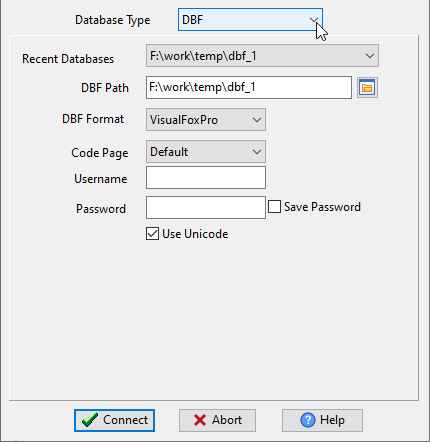
Choose dBase and logon.
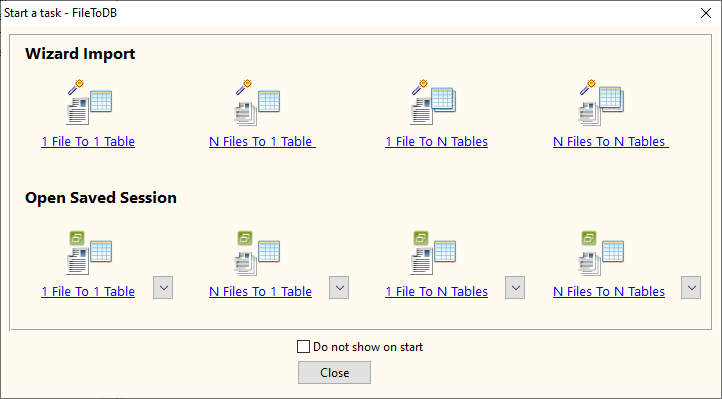
Click “Wizard – N Files To 1 Table” at task dialog.
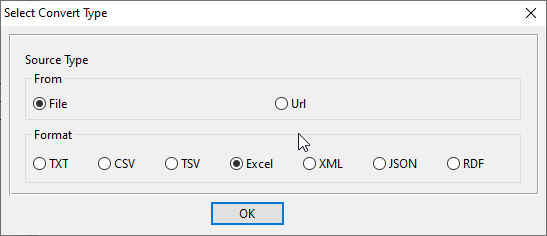
Select the “Excel” file type.
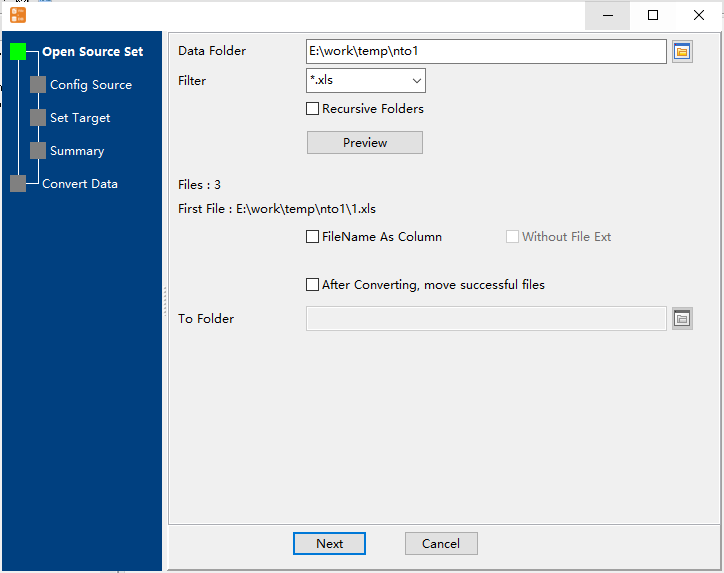
then show the wizard.
1. Select a folder that constains Excel files.
2. Config first EXCEL file importing options.
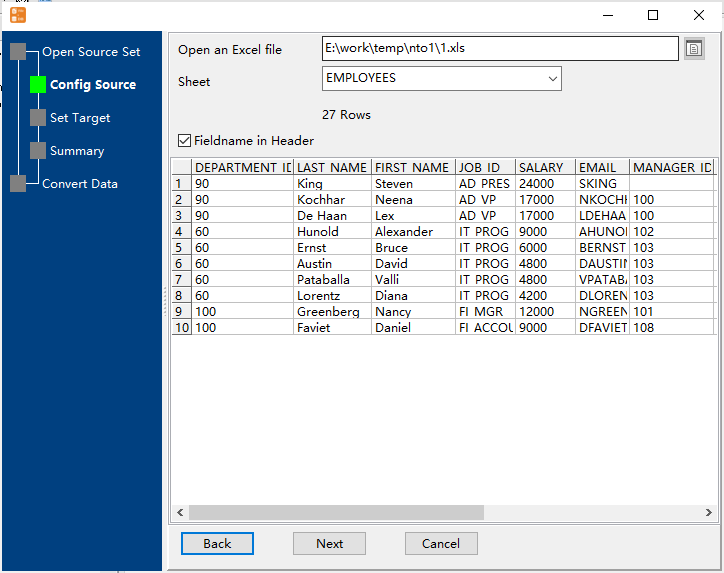
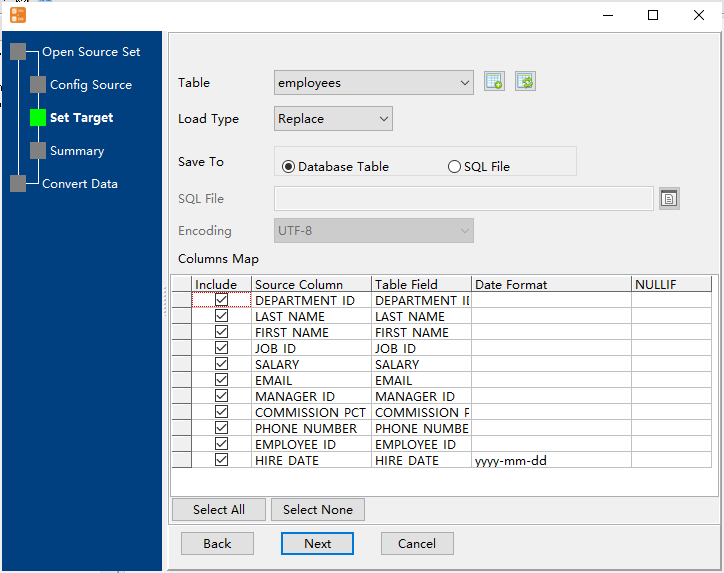
3. Select a dBase table and config fields.
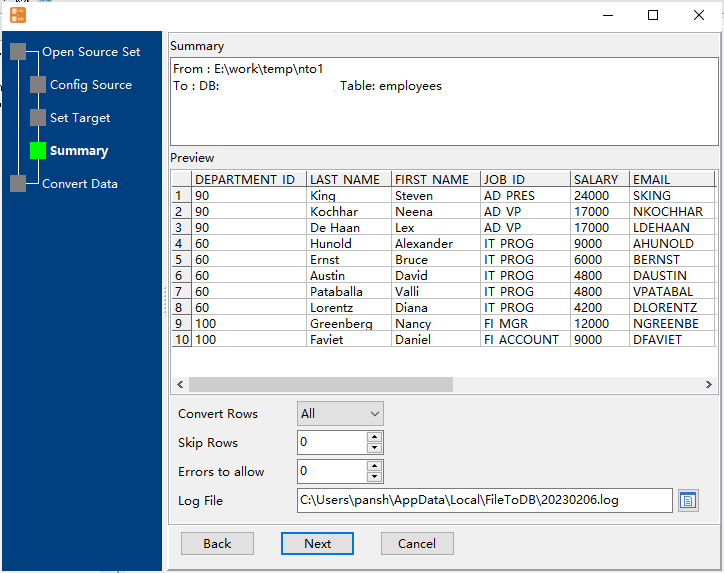
4. Preview data will be in dBase table.
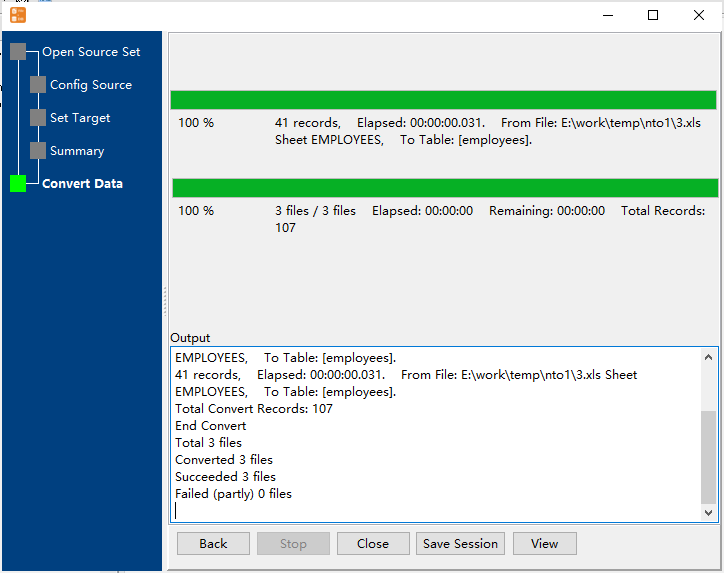
5. Import multiple Excel files to a single dBase table.
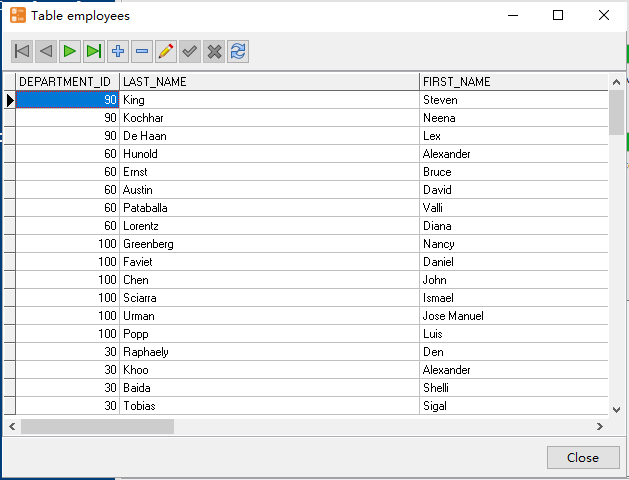
View imported data in dBase table
More about Excel to dBase converter
Download Withdata FileToDB
See also: