Tool to Import LOG to MongoDB in Windows
Sometimes you need to import LOG to MongoDB, you can use Withdata FileToMongo as log to MongoDB Converter (Importer / Loader).
"LOG to MongoDB" tool - FileToMongo
Works GREAT in 2026.
Support all MongoDB deployment types: standalone, replica set, sharded cluster, and MongoDB Atlas.
Can run in GUI mode, Step by Step, just a few mouse clicks.
- 1 to 1: Import LOG to MongoDB collection
- n to 1: Import multiple LOG files to a single MongoDB collection
- n to n: Batch import LOG files to MongoDB collections
Can run in CLI (Command Line Interface), for Scheduled Tasks and Streams, for Automation.
Import LOG to MongoDB in GUI
- 1 to 1 - Import LOG to MongoDB collection
- n to 1 - Import multiple LOG files to a single MongoDB collection
- n to n - Batch import LOG files to MongoDB collections
Start Withdata FileToMongo, connect to MongoDB.

1 LOG to 1 Collection
Click "1 File To 1 Collection" at task dialog.

Select the "LOG" file type.

1. Open a LOG file.

The source LOG file like this:

2. Choose collection and map columns.

3. Preview and set rows options.

4. Import LOG to MongoDB collection.

After importing, you can view imported data in MongoDB collection.

N LOG to 1 Collection
Click "N File To 1 Collection" at task dialog.
Select the "LOG" file type.
1. Open LOG folder.

2. Set LOG options.

3. Choose collection and map columns.
4. Preview and set rows options.

5. Import LOG to MongoDB collection.

After importing, you can view imported data in MongoDB.
N LOG to N Collections
Click "N File To N Collection" at task dialog.
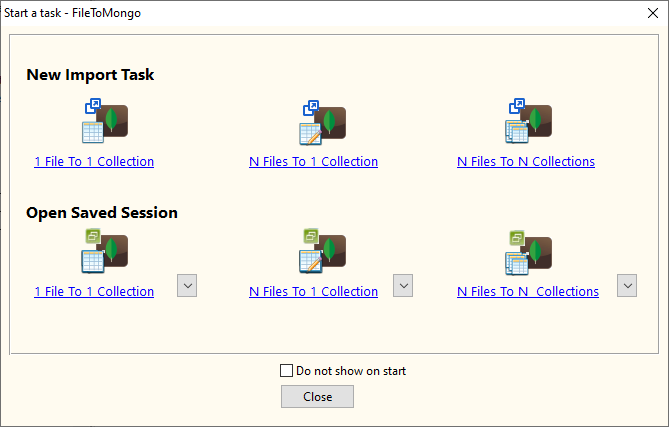
then show the wizard.
Select the "LOG" file type.

1. Open LOG folder.

2. Set LOG options.

3. List collesions, set "Import Type".
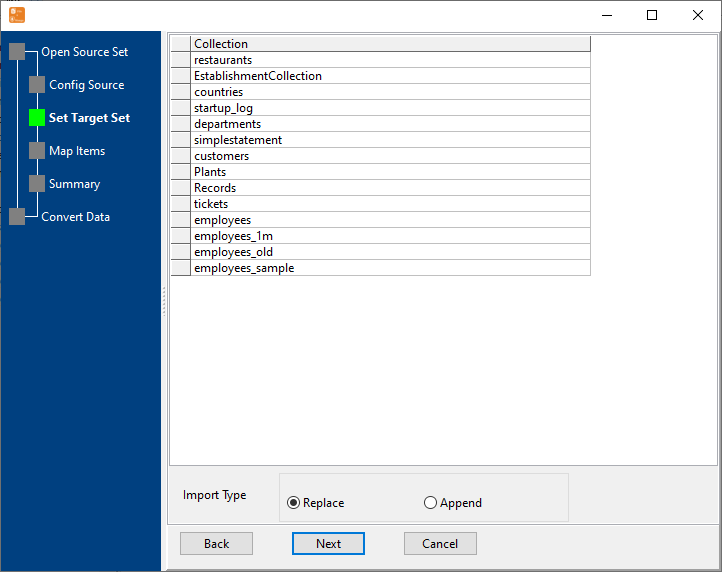
4. Map files to collections.

5. Summary.

6. Import LOG data to MongoDB collections.

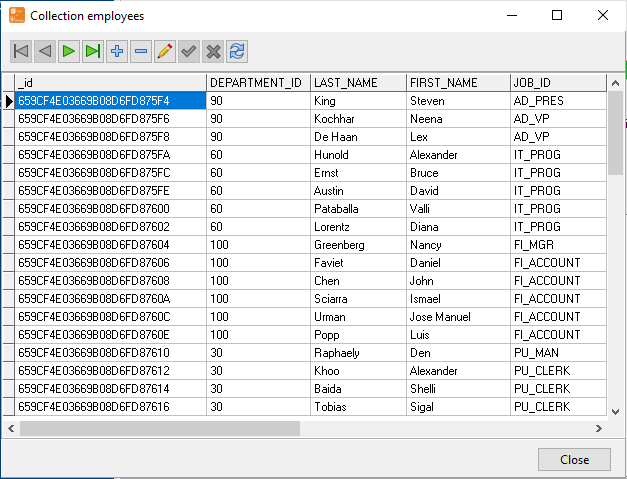
After importing, you can view imported data.
Repeat "LOG to MongoDB" in Command Line
After importing LOG to MongoDB in GUI, and Saving "LOG to MongoDB" session, then you can:
Scheduled task for "LOG to MongoDB"
After importing LOG to MongoDB in Command Line, then you can schedule and automate "LOG to MongoDB" conversion task by:
- Save session and create .bat (Windows) or .sh (Linux/macOS) file for "LOG to MongoDB" conversion.
- Set scheduled task: On Linux/macOS, use Crontab. On Windows, use scheduled task.
FAQ
How long does it take to import LOG to MongoDB?
Is it safe to import LOG to MongoDB using FileToMongo?
Can I import LOG to MongoDB in command line?
Can I batch import LOG files to MongoDB collections?
Download Withdata FileToMongo